 [Site Name]
Grab the exact frame from your video.
Save one sharp still or a frame every few seconds as JPG or PNG. Your video never leaves your device.
Best with H.264 MP4. MOV and WebM depend on your browser.
No upload, no account, no watermark. Closing the tab clears the video.
Sample clip · 8 seconds
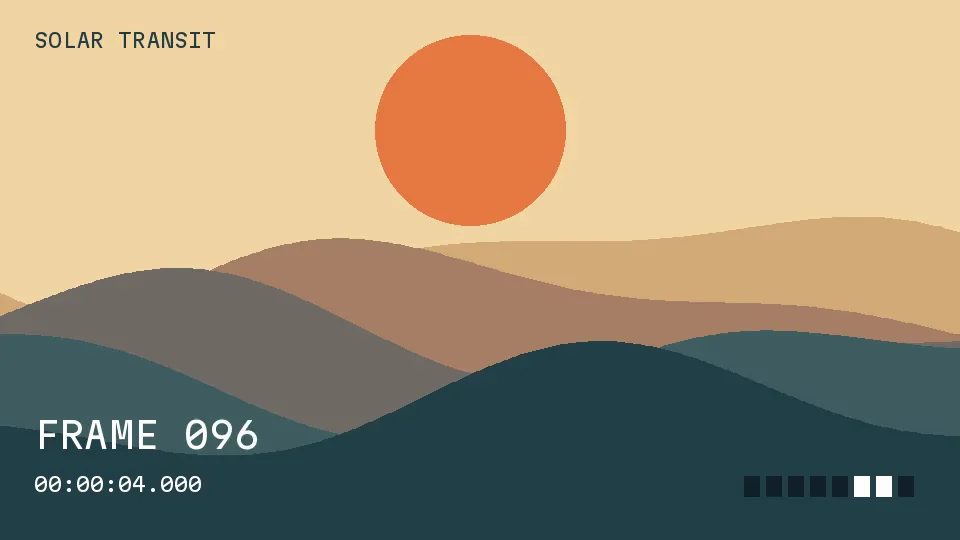
00:00:04.000 Frame 96 · 24 fps



No frames yet
Capture a frame or choose a batch interval.
One exact still
Choose your video, drag the playhead near the moment you want, then use Previous frame or Next frame. Select JPG or PNG and press Capture this frame.
A predictable sequence
Choose an interval or a sampling rate. To trim a clip, enter start and end times. Check the count, extract the images, then download a single frame or the ZIP.
Frame questions
- Does my video leave my device?
- Your browser reads the file locally. Download the stills you want to keep before closing the tab or choosing another clip.
- Which formats can I open?
- MP4, MOV and WebM work when your browser can decode the video inside. If a file fails, try an H.264 MP4. The tool accepts local video files only.
- How do I find the clearest frame?
- Step through the frames around a pause in the motion and compare their edges. PNG preserves the decoded pixels. Blur in the source stays in the still.
- How are frame numbers calculated?
- Frame numbers start at zero. At a constant 24 fps, 4.000 seconds × 24 gives frame 96. A frame lasts 1 ÷ 24 seconds. For variable-rate video, frame numbers and step sizes are approximate. The timestamp is your reference.
- How many images will I get?
- Divide the length of the selected range by the interval and round up. The start is included and the end is excluded. Above 300 images you must confirm. Each open clip can hold up to 600 images or 160 MB of encoded output.
- Why are my PNG files larger?
- PNG preserves the decoded image without further compression loss. JPG at 80% usually makes a smaller file. Resizing preserves the aspect ratio and never enlarges the source.